Sharing contact details shouldn’t take a long while. But individuals still are typing phone numbers, e-mail addresses and social networks manually. One false move and you could lose a connection.
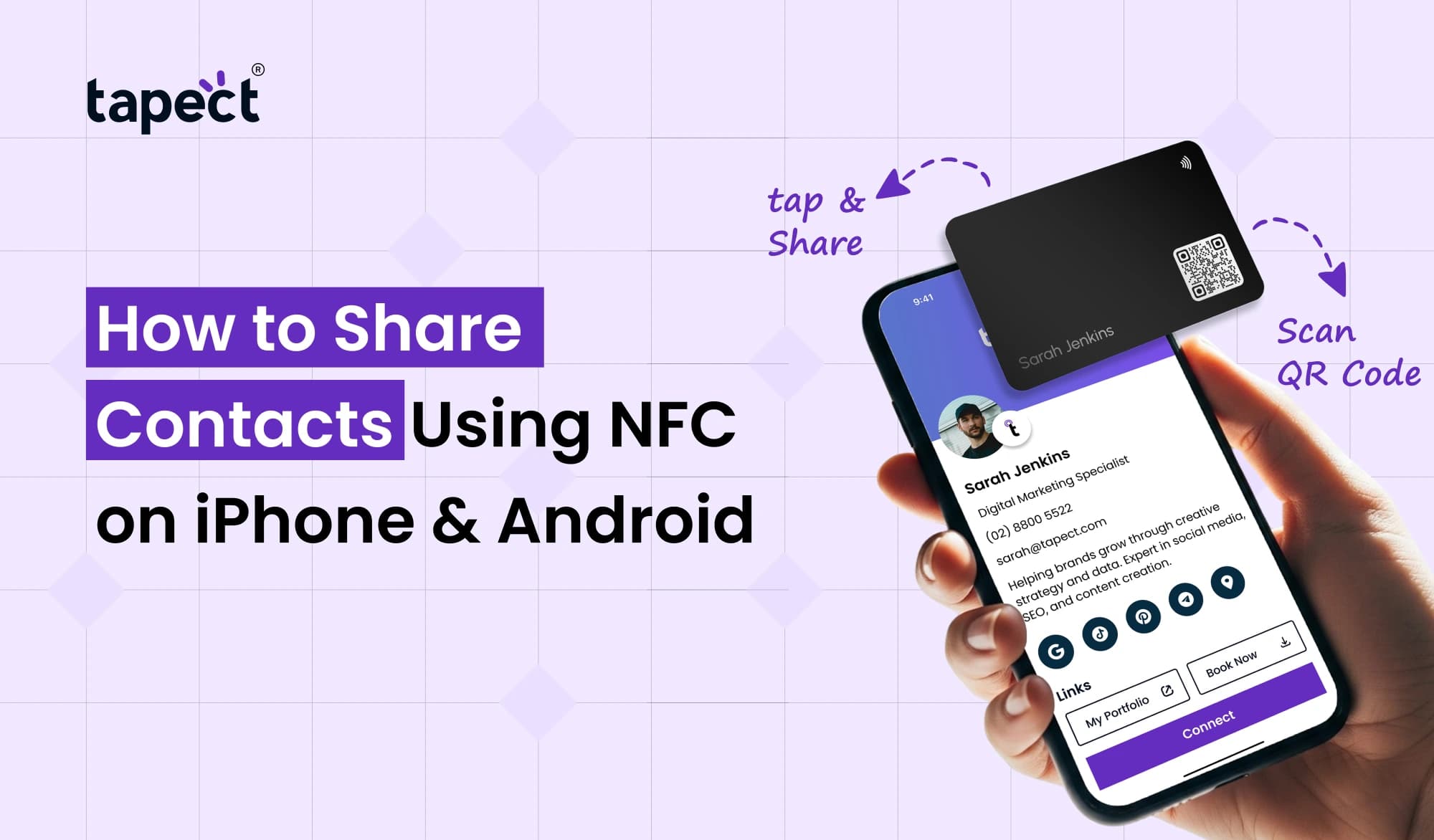
This is far easier using NFC. Share your profile with a tap of a short NFC or digital card. The other individual can open your contact page and within seconds save your details.
In this post, we’ll show you how to share contacts with NFC on iPhone and Android devices. We will also talk about setup, compatibility, benefits and simple techniques to speed up your contact sharing.
What Is NFC Contact Sharing?
NFC is Near Field Communication. It’s a short range technology that allows two compatible devices to connect when they are close to each other.
For networking, NFC can connect a phone to an NFC card or other NFC-enabled device. The card can be linked to your contact profile.
NFC cards can pull up a webpage or contact profile when someone taps their phone next to it. From there they can save your details, browse your site, or connect with you on social media.
Sharing contacts digitally is fast and simple. You don’t have to enter in all the information yourself.
Why Use NFC to Share Contacts?
Traditional business cards are still important, yet they have some constraints. When your phone number or work title changes, they can be lost, destroyed or become outdated.
NFC is a more versatile alternative.
NFC allows you to Share Contacts without the need to print your personal details on a physical card. Your profile might contain your phone number, email, website, social media links and other useful information.
It also provides an easy way to share phone contacts without the hassle of entering them in.
This can save time and make introductions easier for professionals attending meetings, conferences, events and networking sessions.
How Does an NFC Card Work?
An nfc card has a little NFC chip inside of it. The chip can contain a web link, or other small pieces of information.
Most digital network implementations have the NFC chip linking to an online profile. The card has a chip that the phone reads when a person touches it against a compatible smartphone, and opens the link.
The user might then decide to save your information.
Which means that you don’t have to store all contact details on the card itself. Your internet profile does all the heavy lifting.
It also makes changing your information much easy. You can modify your online profile and not change the physical card.
How to Share Contacts Using NFC on iPhone
Existing iPhones can read NFC tags without an additional NFC reader. The basic method is easy, though your mileage may vary depending on iPhone model and software version.
Step 1: Prepare Your NFC Card
First, make sure your NFC card is associated with your contact profile. Your profile must include your name, phone number, email address, work title, company and vital connections.
Step 2: Unlock the iPhone
If necessary, ask the other individual to wake up and unlock their iPhone.
Step 3: Bring the Phone Near the Card
Tap the top of the iPhone against the NFC card. “Hold the phone still for a moment.
Step 4: Open the Link
You may receive a message or prompt Tap to open your contact profile.
Step 5: Save the Details
Now the person can save your information to their phone or use any of the contact methods offered.
This makes it much easier to Share Contacts in meetings or informal introductions.
How to Share Contacts Using NFC on Android
Many Android phones from various manufacturers support NFC, however the settings and menus can vary from device to device.
Step 1: Turn On NFC
Open settings on your phone and search for NFC. Enable the feature on supported devices.
Some phones have NFC in connected devices, connection settings or wireless settings .
Step 2: Unlock Your Phone
When testing an NFC card, make sure your phone is unlocked. This helps to avoid difficulties with the phone not reading the tag.
Step 3: Tap the NFC Card
Bring the back of the phone near the NFC card. Best tapping area may depend on phone model.
Step 4: Open the Contact Profile
When the NFC tag is identified, the phone might show a notification. Tap to get to your profile.
Step 5: Save or Connect
The recipient can save your contact info and call you, visit your website or use your social links.
This makes Share Contacts Online significantly faster than inputting each detail manually.
What Can You Include in Your NFC Contact Profile?
Your NFC profile should give people enough information to understand who you are and how to contact you.
You can add:
- Full name
- Job title
- Company name
- Phone number
- Email address
- Website
- LinkedIn profile
- Instagram profile
- WhatsApp link
- Business location
- Portfolio
- Call or email buttons
A good digital card is your online introduction. This isn’t just a card you hand someone, it’s a whole profile of you as a professional.
NFC vs Traditional Contact Sharing
Typically, transferring contact information involves inputting a phone number, exchanging a paper card or sending details through a messaging app.
NFC speeds these up.
Simply touch on Share Contacts and allow the other person to choose which details to save.
This also comes in handy when you meet a couple of folks at an event. You don’t have to repeat the same material over and over again.
NFC can also make networking more modern for enterprises.
Can NFC Work Without a Contact Sharing App?
In many circumstances you don’t need a dedicated Contact Sharing App to read an NFC tag.
The NFC card can trigger an online contact profile to open in the phone’s browser. From there, the recipient can save your details.
But some systems will have apps for additional functions. These may include profile management, analytics, contact storage or other networking features.
The ideal choice depends on how you want to organise your contacts and what features you require.
How Tapect Makes NFC Contact Sharing Easier
Tapect is an easy method to connect NFC technology with a professional digital profile.
With a Tapect card you can link your NFC card to your digital profile. Tap the card to see your contact data and other relevant links.
This makes Digital Contact Sharing easier for events, meetings, conferences and introductions to company.
You also have your profile to Share Phone Contacts not just a printed business card.
The idea is simple: speed up networking and provide people an easier method to connect with you.
Tips for Better NFC Contact Sharing
NFC is easy to use, but a few simple behaviours can make it great.
Keep Your Profile Updated
Keep your phone number, email address, work title and social links up to date.
Add a Clear Call to Action
Tell folks what they can do after they tap. For example, use terms like “Tap to Save My Contact” or “Tap to Connect.”
Keep the Profile Simple
The page is not cluttered with superfluous information. The most critical contact options are listed first.
Test Your Card
Test your NFC card on several iPhones and Androids before utilising it at an event.
Keep a Backup QR Code
By putting a QR code on your card, you are giving users another means to get to your profile if NFC is not available.
Common NFC Contact Sharing Problems
Sometimes NFC might not function right away. There are a few common reasons.
NFC Is Turned Off
On some Android phones you have to switch NFC on yourself.
Wrong Tapping Position
The NFC antenna is located differently on different phones. Try carefully moving the phone around the card.
Phone Is Locked
Turning the device off and on again can make the NFC interaction work properly.
Card or Link Problem
If the card is not working, ensure the NFC tag and linked profile are enabled.
These fast checks might help you Share Contacts without any delay.
FAQs
1. Can I send contacts from NFC card to the iPhone?
Yes. A compatible iPhone will be able to read the NFC tag and open the link contact profile. Your details might then be kept by the receiver.
2. Can I send NFC contact info to Android?
NFC is supported by many Android smartphones. Feature and settings may change from phone to phone.
3. Do I have to use an app with NFC card?
Not really. If an NFC card opens a web-based profile, the recipient can usually view it via their browser.
4. Can NFC be used to share contacts via the Internet?
Yes. Your NFC card may unlock an online contact profile where individuals may access and save your information.
5. Can I use an NFC card instead of a conventional business card?
This can lessen your paper card needs, especially when quick networking is your goal. You can use either one or both.
6. What is the difference between an NFC card and a digital card?
An NFC card is a physical card with an embedded NFC chip. Your internet contact profile is a digital card. Share Contacts is a handy way to share contacts together.
Conclusion
Networking has been made considerably easier via NFC. Share Contacts with a tap No need to type in phone numbers or send long texts.
Whether you have an iPhone or Android phone, an NFC card can let you rapidly link people to your contact profile. You can put your phone number, email, website, social media and other relevant information all in one spot.
A digital card allows you more flexibility as you can change your details without having to print a new card.
Looking for an easy way to Share Contacts Online? Tapect can help you create a modern contact sharing experience with an NFC card and digital profile.
Ready to Make Networking Easier?
Try Tapect and share your professional details with a simple tap. Create your digital profile, link it to your NFC card and make every introduction count.
 8/21/2026
 business