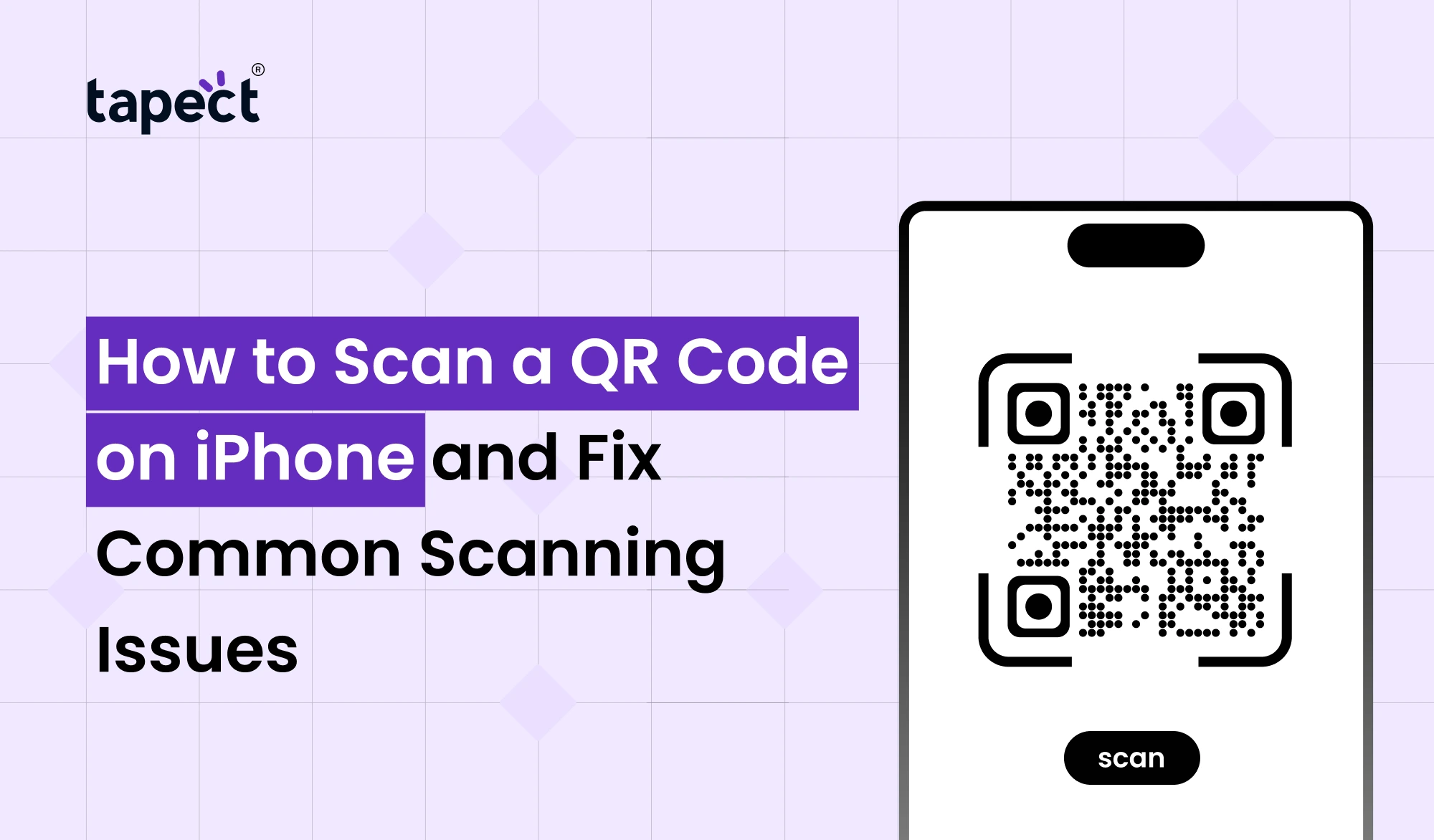
QR codes are everywhere these days. You’ll see it on restaurant menus, product packaging, payment apps, tickets to events and business cards. Many companies also use them to share contact details, websites and social media profiles in seconds. How to Scan QR Code on iPhone. If you want to know about it, you came to the right place.
Apple has made scanning QR’s pretty simple, but for many users, there are still issues such as the camera not picking up the code or nothing happening after the scan. In this guide, you will learn How to Scan a QR Code on iPhone and Why it Sometimes Fails to Scan and Easy Fixes for Common Problems.
This guide has everything you need whether you are scanning a payment code, a website or a Digital Business Card.
What Is a QR Code?
A QR code is a square barcode that contains information. When you scan it with your iPhone camera, it can immediately open a website, save contact information, connect to Wi-Fi, download an app or show business information.
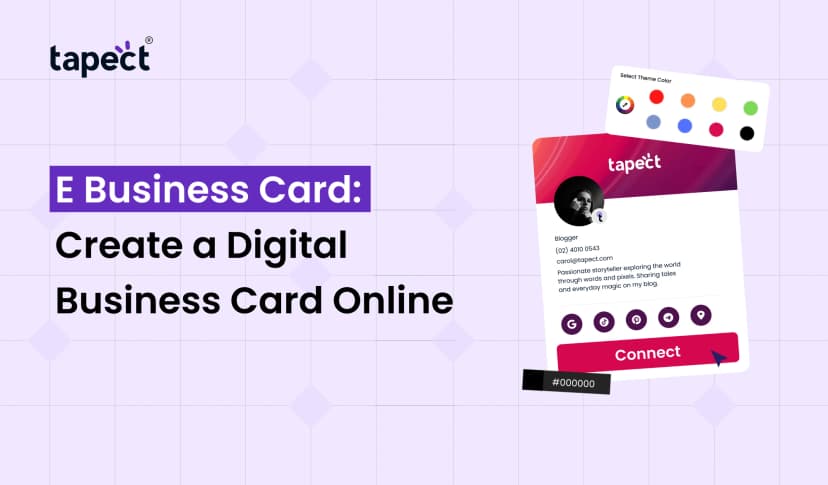
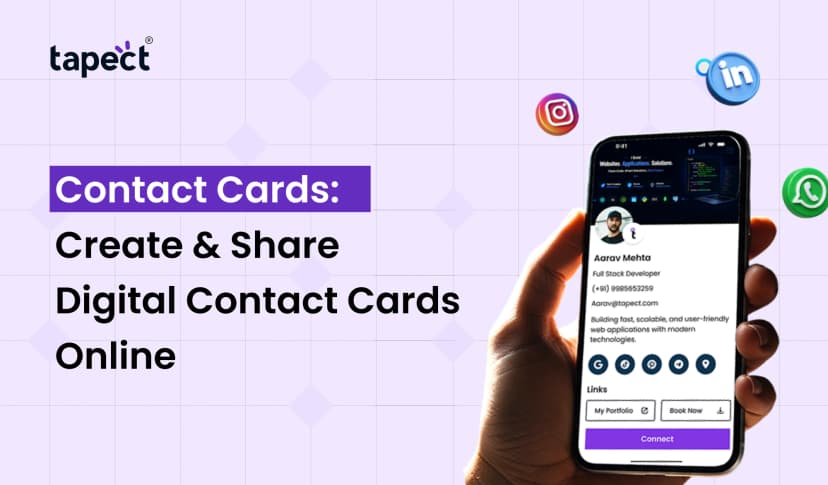
QR codes are an important part of networking today. Today, many professionals use Digital Business Cards with QR codes so that people can save their contact information with just a tap.
How to Scan a QR Code on iPhone
If you are new to iPhone, or you have never used QR codes before, don’t worry. How to Scan a QR Code on iPhone, Learn in a Few Seconds.
Step 1: Open the Camera App
Unlock your iPhone and open the camera app.
Step 2: Point the Camera at the QR Code
Hold your phone still, and position the QR code within the camera frame.
Step 3: Wait for Detection
Your iPhone will automatically detect the QR code. A banner will appear at the top of your screen.
Step 4: Tap the Notification
Tap the banner to open the website, contact page, or other info linked to the QR code.
This is the easiest way to learn How to Scan a QR Code on iPhone and it works on most recent iPhones.
Which iPhones Support QR Code Scanning?
Apple has had built-in QR scanning for a long time. There’s no need to download any extra app if you have your iPhone updated.
How to Scan a QR Code on iPhone is simple for just about any user as the feature works on most modern iPhones.
How to Scan a QR Code on iPhone Using Control Center
Another simple way is to use the built-in Code Scanner.
Follow these steps:
- Open control room.
- Tap the Code Scanner icon
- Point your camera at the QR code
- If it appears, tap the result.
This method is liked by many users because it is only a matter of scanning QR codes.
If you want to know How to Scan a QR Code on iPhone, this is one of the fastest ways.
How to Scan a QR Code Saved in Photos
Sometimes a QR code is sent by WhatsApp, email or screenshots. The code is already on your phone, so the Camera app can’t scan it directly.
Here’s what you can do:
- Launch Images.
- Choose the picture.
- If your iPhone recognises the QR code, tap and hold.
- Click on the link available.
This makes How to Scan a QR Code on iPhone easy even if the code isn’t printed out.
Common QR Code Scanning Problems
Scanning is easy with Apple, but sometimes users have problems.
These are the most common.
Camera Doesn’t Detect the QR Code
Sometimes your camera does not detect the code.
The reasons may be:
- Low lighting
- Dirty lens camera
- QR code broken
- Camera too close to code
Usually, it’s just a matter of cleaning the lens and backing up a bit.
No Notification Appears
If you point the camera and nothing happens make sure you have QR scanning turned on.
Click here to:
Settings > Camera > Scan QR Codes Settings → Camera → Scan QR Codes
Activate the option.
A lot of people asking How to Scan a QR Code on iPhone simply have this setting turned off.
QR Code Opens Nothing
The QR code works some times but the website won’t open.
Possible causes:
- Dead Link
- Slow internet
- QR code has expired
- Temporary Server Problem
Try toggling Wi-Fi and mobile data off and back on and then try scanning again.
QR Code Is Blurry
Poor printing or damage to the code may prevent your iPhone from reading it.
Always use high-quality printed QR codes for the best results.
This is especially true when sharing Digital Business Cards with your clients.
Tips for Better QR Code Scanning
If you use QR codes often, these simple tips will help.
Clean Your Camera
A fingerprint on the lens can prevent your phone from focusing correctly.
Use good lighting.
Bright light will help your iPhone detect the QR code much quicker.
Keep the Phone Still
Small motions can cause recognition delays.
Don’t Zoom Too Often
Get closer instead of zooming in digitally.
If you follow these tips, you’ll be able to scan a QR code on iPhone more quickly and reliably.
Using QR Codes for Business Networking
QR codes are not only for websites.
Digital Business Cards now shared by many professionals:
- Name
- Phone number
- Website
- Social media
- Company profile
Say goodbye to carrying around piles of paper cards, one scan is your all in one.
At Tapect, our smart business solutions make networking easy with beautiful card designs and modern QR technology.
QR Code vs NFC Business Cards
Many people compare QR Codes vs NFC Business Cards.
QR Codes
- Work with almost every smartphone
- No physical tap required
- Very affordable
- Easy to print
NFC Business Cards
- Tap to easily share details
- Faster than a scan
- Network Premium Experience
- no need to turn on the cam
Many businesses today combine QR codes with NFC Business Cards to give the users the best experience.
Why Smart Business Cards Are Becoming Popular
Traditional business cards still work, but they have their limits.
With Smart Business Cards you can:
- You can change your contact information at any time.
- Share on social media
- Include videos
- Portfolio display
- Generate Leads
- Engagement tracking
Smart Business Cards with QR codes become a powerful networking tool.
Understanding iPhone and QR Codes
Apple has built iphone and qr codes to work together.
You don’t need to download other apps to scan QR codes on today’s iPhones.
Scan restaurant menus, payment links and Digital Business Cards quickly and easily.
Apple technology making qr code apple even easier to use as Apple continues to improve iOS.
What Is the QR Code of iPhone?
Many users search for qr code of iphone and think that every iPhone has QR code.
Your iPhone doesn’t have a built-in personal QR code.
However, apps can create QR codes for:
- Contact sharing
- Wi-Fi passwords
- Apple Pay links
- Websites
- Business profiles
Businesses often create their own custom QR codes for marketing and networking purposes.
Why Businesses Use QR Codes
Companies are now putting QR codes on:
- Business cards
- Flyers
- Product packaging
- Brochures
- Event banners
- Store displays
One scan immediately makes products, services or contact information available to the customer.
This is why it is useful to know about How to Scan a QR Code on iPhone in personal and professional life.
FAQs
1. How to Scan a QR Code on iPhone?
Point your camera at the QR code and tap the notification that pops up in the Camera app. This is the easiest way to learn How to Scan a QR Code on iPhone.
2. Why is my iPhone not scanning QR code?
Make sure QR scanning is turned on in Camera settings. Clean the camera lens. Improve lighting. Ensure QR code is not damaged.
3. Do I need a QR scanner application?
No. Most newer iPhones have a QR scanner built into the Camera app and Control Center.
4. Can I scan a QR code from a picture?
Yeah. If your iPhone recognises it, open the image in Photos, and tap or press and hold the QR code to open the link.
5. Do Digital Business Cards work with QR codes?
Yes. Many Digital Business Cards use QR codes to allow people to save your contact information instantly without typing.
Conclusion
Knowing How to Scan a QR Code on iPhone can really make daily tasks a lot easier. Whether it’s opening a website, making a payment, joining Wi-Fi or saving someone’s contact details, QR codes help you do it in seconds.
If you encounter scanning problems, simple fixes like cleaning your camera lens, improving lighting, or checking your settings can usually solve them quickly. As QR technology is growing, it is becoming an essential part of communication, personal as well as professional.
Businesses are also moving away from traditional networking by using Digital Business Cards, Smart Business Cards, and NFC Business Cards to create faster, smarter and more memorable connections.
Call to Action
Want to upgrade the way you share your contact info?
Tapect’s premium Digital Business Cards, Smart Business Cards & NFC Business Cards connect you instantly with a simple tap or QR code scan. Tapect is what makes networking faster, smarter and more effective as a business owner, freelancer or sales person.
Choose Tapect today and convert every meeting into a lasting business opportunity.
 8/18/2026
 Guides