Smartphones have revolutionised the way we distribute information and make payments. One feature that many Android users still aren’t using is NFC. Whether you want to use contactless payments, share files, or even use an NFC business card, learning How to Enable NFC on Android can make your phone much more useful.
If you’re wondering if my Android phone has NFC or How to turn on NFC on Android, this guide will walk you through every step. You will also learn how to use NFC on Android, common problems and practical ways to use NFC in your daily life.
What Is NFC on Android?
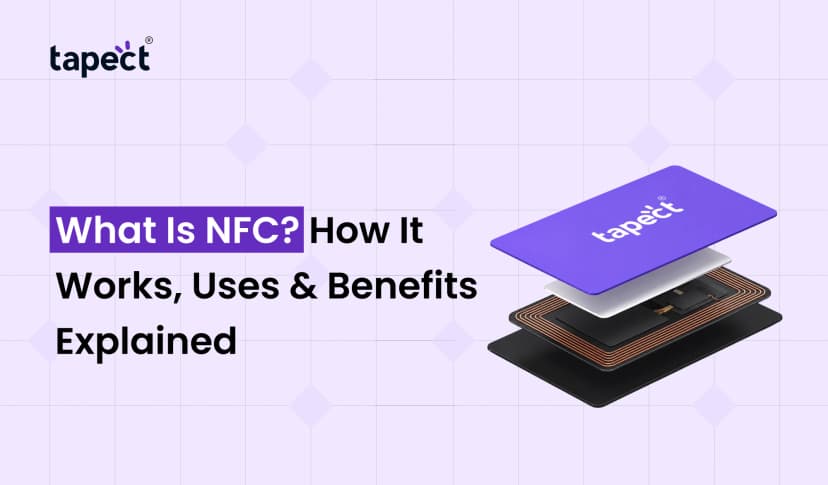
NFC is short for Near Field Communication. It is a wireless technology that enables two devices to exchange information when they are very close to each other.
Once you know How to Turn On NFC on Android, you can:
- Pay using contactless
- Share contacts and files
- Link to smart devices
- Use an NFC Card
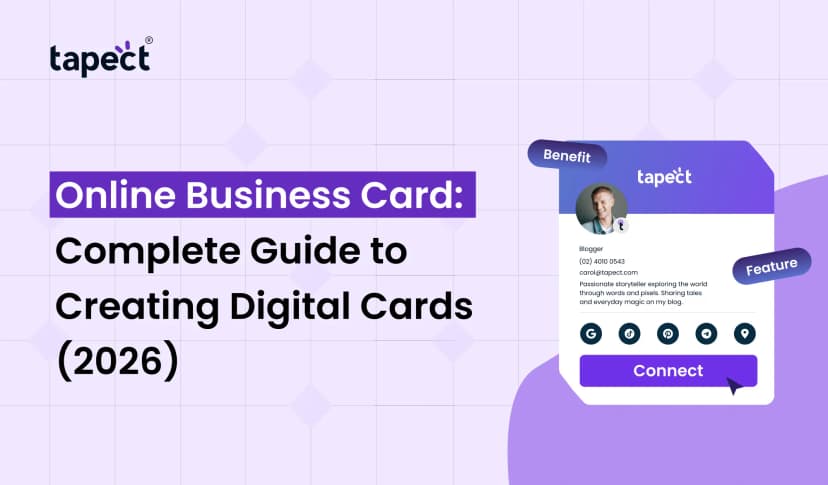
- Share your digital business card
- Quick Bluetooth device pairing
NFC takes just seconds to complete, speeding up and simplifying everyday activities.
Why Should You Turn On NFC?
Many Android users don’t even know their phone has NFC in the first place.
Once you learn How to Turn On NFC on Android, you can take advantage of benefits such as:
- Mobile payments get faster
- Plain contact sharing
- Instantly open website
- Intelligent Office Access
- Better networking with a nfc businesscard
- Fast device pairing
One tap can do the job instead of typing information manually.
How to Check If My Android Has NFC
Before you learn How to Turn On NFC on Android, check that your phone supports NFC.
Here are some easy ways to check.
Method 1: Search in Settings
Open Settings
Tap the search bar
Type NFC.
If NFC appears in the results, your phone has NFC.
Method 2: Check Connection Settings
To learn more, visit:
Settings → Connected Devices
Settings → Connections
NFC is listed there on many Android phones.
Method 3: Check Phone Specifications
Search the internet for your phone model or go to the manufacturer’s website.
One of the easiest ways to answer the question is to say:
Does My Android Phone Have NFC Technology?
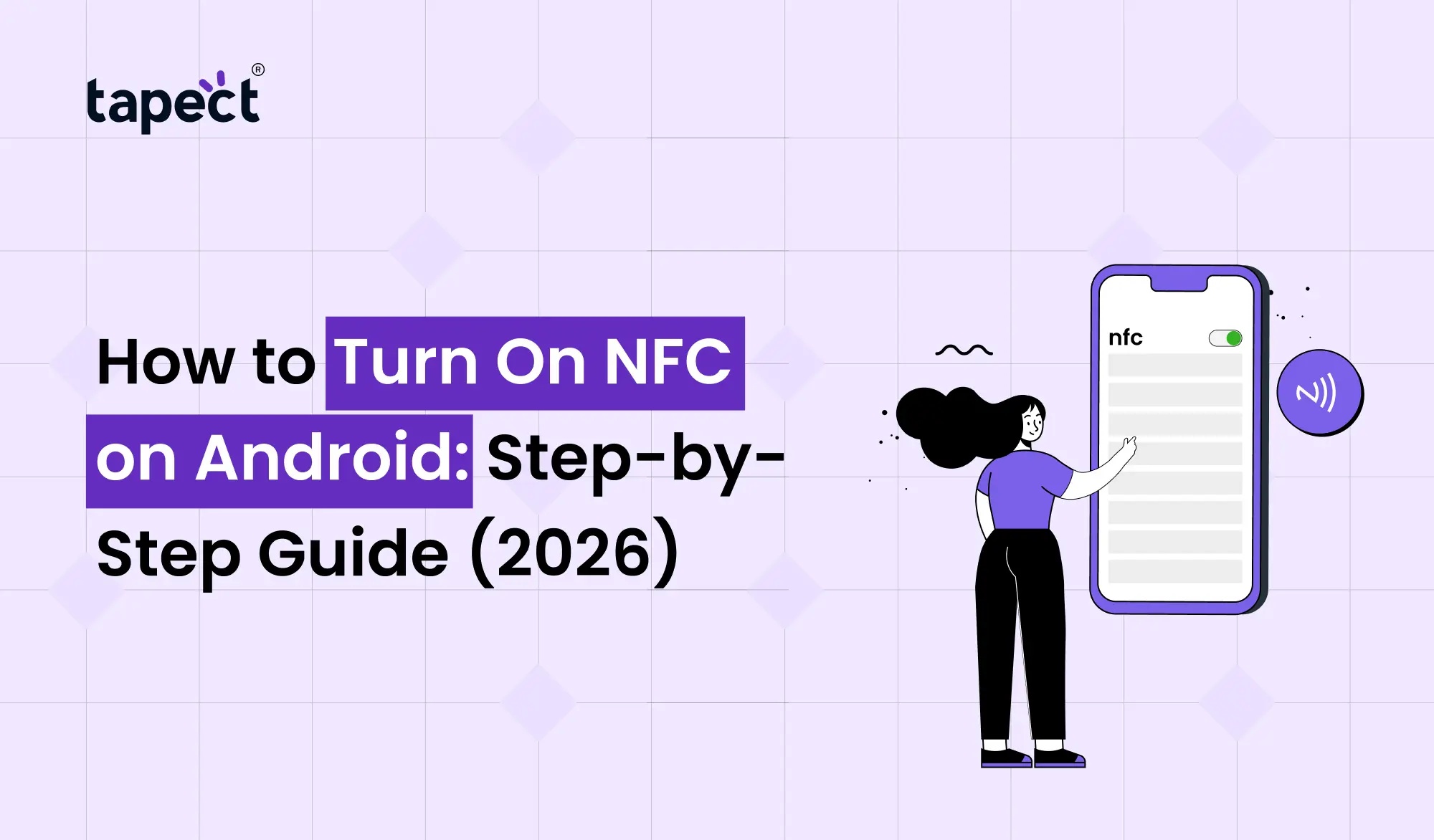
How to Turn On NFC on Android
Now we will learn How to Turn on NFC on Android.
Depending on what brand of phone you have, the steps might be a little different.
Samsung
- Open Settings.
- Tap Connections.
- Select NFC and Contactless Payments.
- Turn NFC On.
There you go.
Google Pixel
- Open Settings.
- Tap Connected Devices.
- Choose Connection Preferences.
- Tap NFC.
- Enable the switch.
How to Turn On NFC on Android on a Pixel You Are Now Done.
OnePlus
- Open Settings.
- Tap Connection & Sharing.
- Select NFC.
- Turn it On.
Xiaomi
- Open Settings.
- Tap More Connectivity Options.
- Find NFC.
- Enable it.
Oppo and Realme
- Open Settings.
- Tap Connection & Sharing.
- Turn NFC On.
Vivo
- Open Settings.
- Tap Other Networks & Connections.
- Enable NFC.
How to Enable NFC on Android – You can get the process going in just a minute, regardless of the brand.
How to Activate NFC on Android for Tap to Pay
Many users ask how to enable NFC on Android for Payments.
Here’s what you ought to do.
- Turn NFC On.
- Install Google Wallet or your bank’s payment app.
- Add your debit or credit card.
- Make your payment app the default.
- Unlock your phone.
- Hold it near the payment terminal.
That’s it.
You have successfully turned on NFC for tap to pay Android.
You can now pay without your wallet.
How to Use NFC on Android
Now that you know how to turn on NFC on Android, let’s see what it can do.
Contactless Payment
Tap your phone on payment machines at participating stores.
Contacts Sharing
Share your phone number or contact info in no time.
Pair Bluetooth Devices
NFC Instant pairing for many NFC-enabled speakers and headphones.
Smart Home Equipment
Some smart gadgets can be connected with a tap.
Open Websites
With a nfc card you can directly launch a website or landing page.
Share a Digital Business Card
Today, professionals don’t carry stacks of paper business cards but a digital business card.
One tap to share:
- Name
- Phone number
- Website
- Social media
- Company profile
This makes it so much easier to network.
Using NFC Business Card for Networking
One of the most popular uses once you know How to Turn On NFC on Android is to use a nfc business card.
Don’t give someone a traditional card, just tap your phone or NFC card.
Instant access to their contact details.
A modern digital business card also lets you update your information without printing new cards.
It saves you money and gives a better first impression.
Common Problems When NFC Doesn’t Work
You might think you’ve done How to Turn On NFC on Android but NFC still not working.
Here are some common reasons.
NFC Is Disabled
Make sure NFC is turned on.
Phone Case Is Too Thick
Some thick cases block the NFC signals.
Try again without the case.
Wrong Phone Position
Usually the NFC chip can be found near the center or top back of the phone.
Slowly move your phone until it connects.
Screen Is Locked
Many payment apps need the phone to be unlocked.
NFC Not Supported
If you searched does my Android phone have NFC and you can’t find the option then your phone doesn’t have NFC hardware.
Tips for Better NFC Performance
Learn How to Turn On NFC on Android by following these easy tips.
- Keep Android up-to-date.
- Use secure payment apps.
- Test your NFC in time for critical meetings.
- Protect your phone with the screen lock.
- Ensure your NFC card is clean.
- Do not store NFC cards near metal objects.
- Paper Business Card vs NFC Business Card
Why Businesses Are Switching to Digital Business Cards
Companies want to do networking faster.
Digital business cards allow teams to share information instantly.
NFC technology is helpful for sales professionals, consultants, real estate agents, recruiters and business owners.
It’s easy to use these smart business cards when you learn how to turn on NFC on Android.
Why Choose Tapect?
Looking for a smart way to network? Tapect has modern NFC solutions for professionals and businesses.
With Tapect you can:
- Share your contact info with one tap
- Design a professional digital business card
- Refresh information at any time
- Add Websites, Social Profiles, Videos and Links to Pay
- Make an impression at meetings and events
Tapect helps you network faster and smarter, whether you are a freelancer, entrepreneur or a growing business.
FAQs
1. How to turn on NFC on Android?
Open Settings. Search for NFC and turn it On. Where the menu is located depends on your phone brand.
2. Does my Android phone support NFC?
Head into Settings and search for NFC. If you see the option, your phone has NFC.
3. How do I turn on NFC for Android payments?
Switch NFC on Download Google Wallet Add your payment card Make it your default payment app
4. How to use NFC on Android?
You can use NFC to make contactless payments, pair Bluetooth devices, share files, use smart tags, share nfc business cards, and open websites.
5. What is NFC business card?
An nfc business card is a digital card that shares your contact information, website and social profiles with a simple tap.
6. How secure is NFC?
Yes. NFC only works at a very short distance, so it’s a secure option for payments and contact sharing.
Conclusion
One of the easiest ways to unlock powerful features on your smartphone is learning How to Turn On NFC on Android. NFC makes everyday tasks quicker and more convenient, whether that’s making secure contactless payments or sharing your contact details with a nfc business card.
If you were asking how to check if my Android has NFC, how to activate NFC on Android or how to use NFC on Android, now you have all the needed information to get started. Once NFC is activated, you’re ready to enjoy faster payments, instant connections and smarter networking.
Ready to Upgrade Your Networking?
Stop handing out regular business cards.
Tapect allows you to make a digital business card with a professional touch, compatible with NFC technology and allowing you to share your contact details in a single tap. Impress your clients, expand your network, and maximise every meeting.
Start with Tapect today and experience smarter, faster and professional networking.
 8/6/2026
 Guides