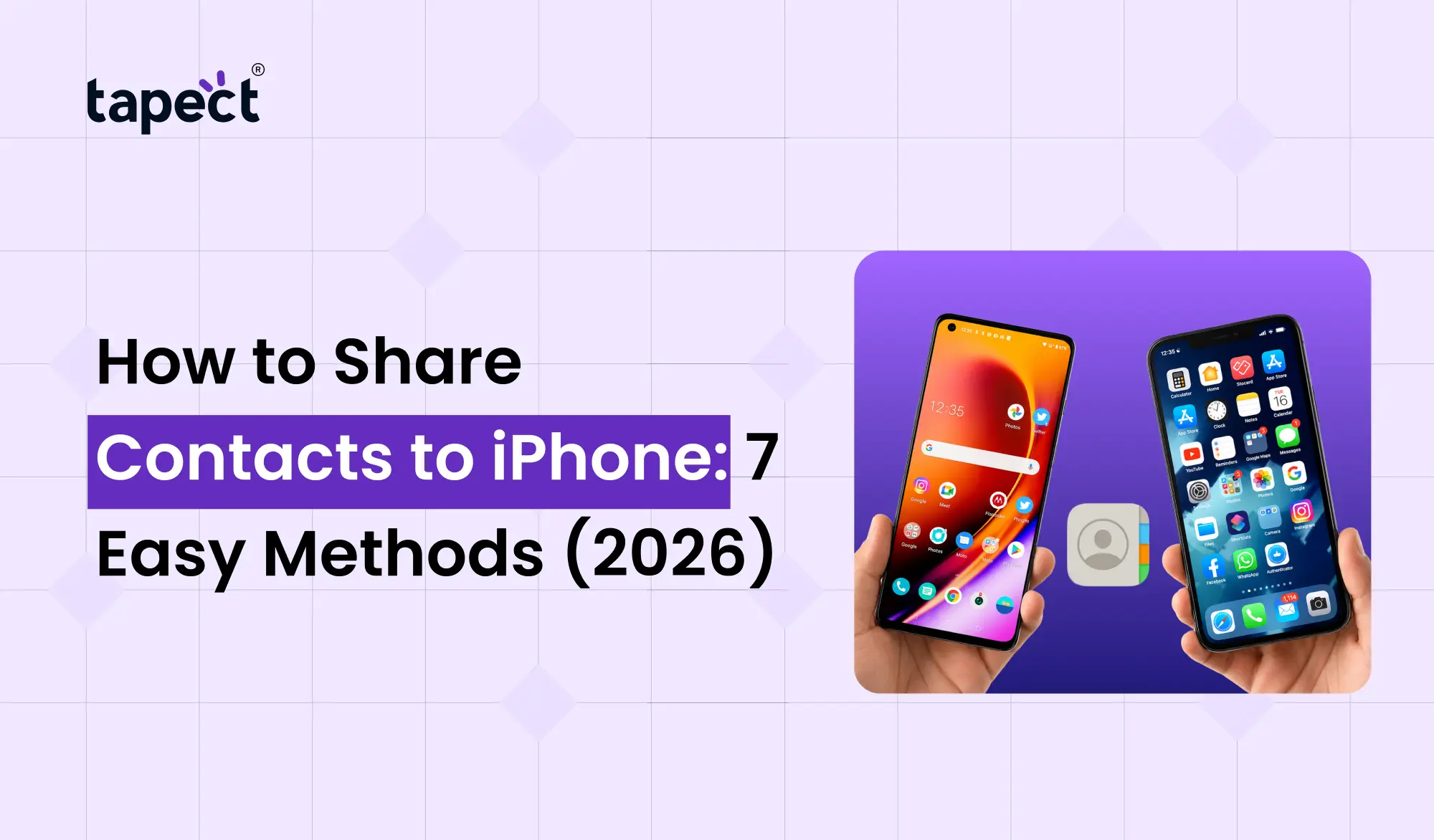
It’s a lot easier to share contact details now than a few years ago. Whether you’re meeting new clients, at a networking event or just swapping numbers with friends, there are all sorts of quick ways to share contact info. If you have been asking yourself How to Share Contacts to iPhone, you’ve come to the right place.
Apple has a number of built-in options, but there are modern options like a digital business card, NFC business card and QR code business card that make sharing contact information almost instant.
Learn How to Share Contacts to iPhone in this guide with 7 easy ways that work in 2026.
Why Knowing How to Share Contacts to iPhone Matters
Your contact details are usually the first step in building a personal or business relationship. If it takes too long to share them, people can lose interest or get the wrong information.
Learning How to Share Contacts to iPhone helps you to:
- Time savings
- No mistakes in spelling
- Give full contact details
- Facilitate Networking
- Make a stronger first impression
Whether you use Apple Contacts for personal use or for business networking, these methods make sharing simple.
Method 1: Share Contact Card on iPhone Using the Contacts App
The easiest way to learn How to Share Contacts to iPhone is through the Contacts app that comes with the phone.
Steps:
- Launch the Contacts app.
- Pick who you want to share with.
- Scroll down and tap Share Contact
- Choose how you’d like it sent.
- Contact through Messages, Mail, or another app.
With this method you How to Share Contacts to iPhone in seconds.
Best for:
- Family
- Friends
- Everyday contact sharing
Method 2: Use AirDrop Contacts
If both iPhones are close by, AirDrop contacts is one of the quickest options.
Steps:
- Turn on Wi-Fi and Bluetooth.
- Enable AirDrop on both devices.
- Open the contact.
- Tap Share Contact.
- Choose AirDrop.
- Select the nearby iPhone
The receiver just has to tap on Accept.
The speed of using AirDrop contacts is due to the lack of required internet connection.
Best for:
- Business meetings
- Conferences
- Offices
- Friends nearby
Method 3: Send a Contact Through Messages
Another easy way how to share contacts to iPhone is through iMessage or SMS.
Steps:
- Open Contacts .
- Choose the contact.
- Tap Share Contact
- Select Messages.
- Select the recipient.
- Tap on Send.
The other person gets a contact card that’s easy to save with a tap.
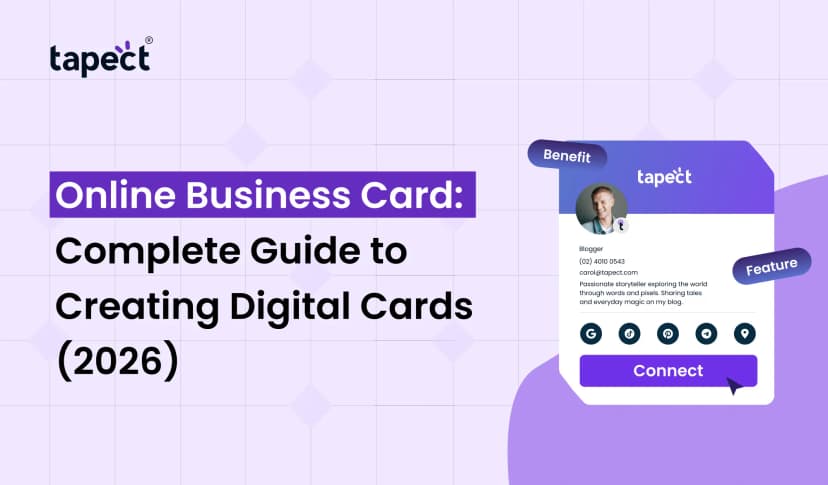
Method 4: Share Contacts Using a Digital Business Card
A lot of professionals use a digital business card instead of a paper one these days.
With a digital business card you can share:
- Name Phone Number
- Email Website Social Media
- Company Overview
Don’t hand someone a printed card, just send them your digital profile.
With Tapect you can create a professional digital business card and instantly share it with any iPhone user. It saves time and keeps your information fresh anytime you make changes.
This is one of the best options if you are looking for a smart way to master How to Share Contacts to iPhone.
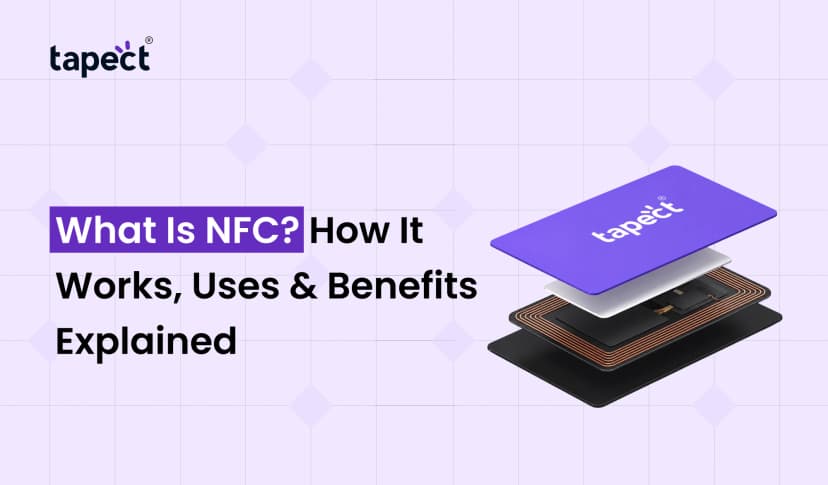
Method 5: Use an NFC Business Card
An NFC business card is a popular networking tool.
People don’t scan or type, they just tap your card with their iPhone.
The card will immediately open your profile to save their information.
Benefits include:
- No typing
- Faster networking
- Professional appearance
- Works in seconds
Many professionals combine a digital business card with an NFC business card for the best of both worlds.
It’s one of the easiest ways to make sharing contacts at meetings and events so much easier.
Method 6: Share Using a QR Code Business Card
Another modern option is a QR code business card.
People don’t tap, they just scan the QR code with their iPhone camera.
Your profile will open automatically after the scan.
Below are things you can add on a QR code business card:
- Contact information
- Website
- Portfolio
- Social profiles
- Booking links
Links to the book
Many companies now include a QR code on a contact card because it works on almost any smartphone.
If you are asked How to Share Contacts to iPhone, this method is simple and fast and you don’t need to install an app.
Method 7: Share via Apple Contacts and iCloud
If your contacts are in Apple Contacts, they will sync with your Apple devices via iCloud.
You can:
- Share contacts from iPhone
- Share from iPad
- Share from Mac
It keeps your information up-to-date everywhere.
It also lets you easily manage personal and professional connections with Apple Contacts.
Tips for Better Contact Sharing
For smooth contact sharing, keep these tips handy.
Tips for Better Contact Sharing
Be sure to update your phone number, email and company information regularly.
Add Your Picture
People are better at remembering faces than names.
Social Links
People can learn more about you via LinkedIn and your website.
Try Your QR Code
If you are using a contact card QR code, scan it before sharing it.
NFC + QR
An NFC business card works with a tap and a QR code business card works with a scan. Both mean that pretty much anyone can access your details.
Top Mistakes to Avoid
Many people make little mistakes when learning How to Share Contacts to iPhone.
Avoid these:
- Recycling old information
- Failing to test your QR code
- Leaving important fields blank
- Poor quality printed QR codes
- Not checking if AirDrop is turned on
These simple checks can make sharing contact a lot smoother.
Why Businesses Prefer Digital Contact Sharing
Paper business cards are still useful, of course, but there are lots of advantages to sharing digitally.
With a digital business card you can:
- Update information at all times
- Share Limitless
- lower printing costs
- Add videos and web sites
Get to work on your tracks with pro tools
Modern professionals often use Tapect to build a smart digital profile that works with both NFC business card and QR code business card technology for easy connection with iPhone users.
The Future of Sharing Contact
Networking keeps getting better with technology.
Now, more professionals use:
- Digital business cards
- NFC Business Card
- QR code business cards
- Integration With Apple’s Contacts
These tools allow people to share information in seconds instead of carrying a stack of paper cards.
As businesses are moving digital more and more, learning How to Share Contacts to iPhone would be an important networking skill.
FAQs
1. How to Share Contacts to iPhone?
The fastest ways are AirDrop, Share Contact, a digital business card or an NFC business card.
2. How to Share Contacts to iPhone without an app?
Yes. Use the built-in Contacts app to share a contact card on iPhone with Messages, Mail, or AirDrop.
3. How to share business contacts easily?
One of the easiest ways is to use a digital business card, because it lets you share all your information via one link or scan.
4. Do QR code business cards work on iPhone?
Yeah. All modern iPhone cameras can scan a QR code business card without having to download an app.
5. NFC business card vs paper business card, which is better?
Yes, for many professionals. With an NFC business card, you can instantly share contacts, update it anytime with a connected digital profile and create a more modern networking experience.
Conclusion
Sharing contacts to iPhone is a good way to grow your network on a personal and professional level. Each method, whether it’s Apple Contacts, AirDrop contacts, Messages, a digital business card, an NFC business card, or a QR code business card, helps you share information faster and more accurately.
Networking is becoming more digital and smart contact sharing tools save time, make a better first impression and make it easier to keep in touch with people. Choose the option that best fits your needs and make each new connection easy and memorable.
Get Started with Tapect Today
Want to share contact info faster and more professionally?
Tapect is a tool that allows you to create a powerful digital business card that works with NFC business card and QR code business card technology. Share your details with iPhone and Android users instantly, update your details anytime, and make a lasting impression at every meeting.
Sign up for Tapect today and make each new contact a long-term opportunity.
 8/6/2026
 Guides